Author: Rachelle Moore

  • 15 Lightroom Tips and Tricks

    15 Lightroom Tips and Tricks

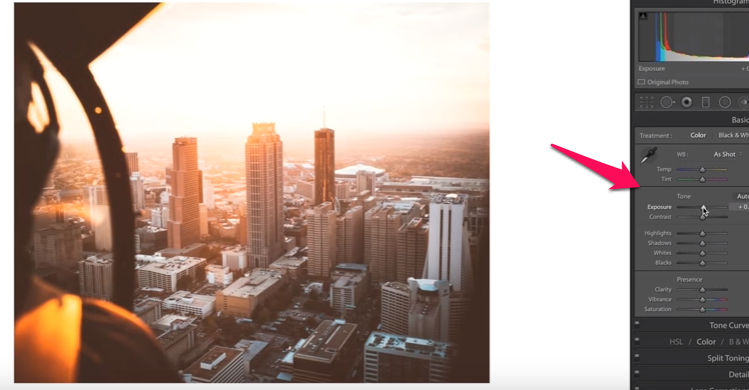
    One of the most sought after editing applications is Adobe’s Photoshop. Because anybody can use Photoshop’s assortment of features even without the Internet, editing of different pictures can be done easily. This goes to show that you can take any editing works for as long as you want.

    One of the Best features of Adobe Photoshop is the Lightroom. With its Smart Previews, it makes the user reconnected to the computer anytime without connecting the hard drive. By design, it syncs anything that has been edited using the Smart Previews and these files can be then easily be handled without conceding the original version.

    Best Tricks that can be Used Everyday

    It is known to every photographer the different beneficial features Adobe’s Lightroom has in its arsenal. It is filled with numerous helpful attributes that can make every photographer’s life easier. But this is not exclusively for photographers only. Adobe Photoshop’s Lightroom is for everyone to enjoy – from people working at home, to students, to office workers, for everybody. Once you learn these features exist, you can edit photos as enjoying as look at them.

    Below are some of the tricks and tips on how to operate Lightroom effortlessly.

    1. Lightroom – a game of space

    Foremost, you need to go to the Library screen. This is the initial step where you can want to see sets of photos. Note that you will see a bar on top of the screen. The bar is deemed useless so it is better to get rid of it. If you want to import a photo and you want a specific library screen and you want to move to develop that particular shot, just hit the D button. This is the easiest way to move to the developed panel.

    2. Add a White Backdrop

    If you want to add a white backdrop or any color of preference, all you need to do is Right Click and you have all the options of assortment of colors to select from.

    whitebackdrop lightroom


    3. Straighten the Horizon

    This technique involves making the . Whenever you have a shot that shows uneven horizon, what most people do is go to Angle slider and select the proper angle that will straighten things up. Since this is time-consuming, all you need to do is hit the Command button for you to draw a level line across the photo. After dropping it, you will notice that the uneven horizon will automatically become straight.

    horizon of a photo straight


    4. Straighten Crop Orientation

    All photos oriented as landscape can be automatically changed by Lightroom to portrait by hitting the X Key and instantly, your cropped photo will turn into portrait.

    Straighten Crop Orientation


    5. Utilize Transform Tool

    Transform Tool is a feature in Lighthouse where it corrects distorted horizontal and vertical lines, and change the perspectives or anything that needs to be straightened. Scrolling down to Transform Tool, you can just choose whether it is vertical or horizontal lines that you want to be corrected. This is a perfect tool to make lines symmetrical to each other.

    Utilize Transform Tool

    6. Isolating Photos for Viewing

    To do photo isolation, it is just hitting the L Key twice and image will be back-dropped by a black screen. If you want to return back to the original photo, just click the L Key for the third time.

    Isolating Photos for Viewing


    7. Bringing Panels back to the Screen

    This feature is similar to photo isolation. Here you need to click the Develop module and you want to have your left side bar show its presets. You need to hit the Tab bar and the left side of the screen will show all its presets. To close both the left and right bar, just hit the Tab once again and the photo will be shown against the same background that you set.

    Bringing Panels back


    8. Making the

    This is done by going to the leftmost part of the bar. You need to click it and drag it to the right as far as you can go to make right module bigger. The reason for doing this is to fine-tune all the editing works you are going to make.

    Side Bar Bigger


    9. Slider Adjustment

    To make small adjustment to the sliders, all you need to do is to bring your curser to the slider and go to the Up and Down Arrow Key. If you want to make higher increments of adjustment, press Shift + Up and Down Arrow Key.

    Slider Adjustment


    10. Use the Brush Tools

    One way to speed up your work flow using the Brush is by hitting the Left or Right Bracket Key. To adjust the Feather, just press the Shift + Left or Right Bracket Key. Utilizing the Right Bracket will make the Feather bigger and smaller if otherwise.

    11. Copy settings

    This is done by right clicking the image and press Settings and go to Copy Settings. The main goal of this is to primarily copy whatever color set up of this picture and use it to other photos. This is done by copying all the presets of the current photo and the going to the photo these presets will be applied by pressing Paste Settings.

    12. Getting Rid of Specific Sections

    Removing features that are seldom used is to go directly to the module and right click the section you want to remove.

    Getting Rid of Specific Sections


    13. Sharpening the image

    Going to the Masking option under Sharpening, click the ALT/Option Keys of the keyboard and hold them down. This time, adjust manually the Masking slider. Anything that is black cannot be sharpened and anything that is white can be sharpened. This function eventually cuts the noise of the photo.

    14. Spot Removal Tool

    The purpose of this tool is to remove unwanted spots of the photo. You only need to drop a point from the area of consideration and hold down the Shift Key and a line is created that will remove all the spots of the photo that you want to remove.

    15. Video editing using Lightroom

    Under the Develop module, a “not supported” message will pop out. If you want to capture a particular frame of the video, edit this by clicking Sync in the bottom-right corner.

    If you want us to edit your photos contact Phixer right away.


    Video tutorial version below: Credit to Evan Ranft

  • 4 Basic Steps to Create a Stunning Real Estate Video

    4 Basic Steps to Create a Stunning Real Estate Video

    A real estate video is a great material to showcase a property, and if you’re planning to list one, this is one of the most effective ways to please your ever-changing, hard-to-please market. Real estate is as cut-throat as you expect it to be, especially with people getting busier and digital more than ever. A 2-minute video is enough for an interested buyer to get a feel of your home, just like they’re having a walk-through minus the hassle. However, not all videos are created equal.

    Real estate video editing—no matter how “common”—is pure talent, and an outcome depends on how good or not your video was created. Everyone may be able to cut or import music, but it takes creativity plus an immense amount of particularity & patience to make an impactful 2-min real estate video (or any kind of video for that matter). 

    To give you an idea, here’s a step by step process when creating a real estate video.

    Color Grading

    Color affects mood. Getting a positive response from a client depends on how your property looks and feel on your video. Granted that proper lighting is important, achieving the right color grade can do so much.  At this stage, colors will be enhanced by adjusting RGBs, saturation, and hues.

    We prefer to use the DaVinci Resolve software to color grade videos. With its color matching, primary color adjustment, secondary color adjustment, LUT support, and HSL curve abilities, guaranteed your property will look attractive. The software’s video scopes also helps in ensuring the colors are balanced accordingly.

    Music Selection

    Just as color grading makes your property look visually appealing, music will add excitement and personality. You can make your property appear fun and cozy, or luxurious and majestic depending on the audio you chose to go with your video. It is crucial to find the right audio. One common mistake is thinking that audio is just an afterthought of your visuals; no, both goes hand in hand.  

    In addition to that, if you want have the best music possible, you must be willing to spend a little money. Make sure it’s copyright clear, and obviously of good quality.  Good music is everything.

    Cutting and Transition

    There are a lot of techniques in video cutting and transition, but because we’re in real estate videography, our choices are a bit streamlined. The simple cut is the most basic technique in video transition, it will give your video a clean and professional look. You’ll simply select a clip, drop it in the timeline, drag it up to the previous clip (make sure there’s no gap in between), and that’s it!

    A cross-dissolve transition is a useful transitional editing technique as well that shows/represents passage of time. All you have to do is put your clips up against one another, find the cross-dissolve effect and drag it on over your cut. Don’t overuse it though!

    More so, be mindful of your transitions and audio, both has to be in sync or your video will look all over the place and awkward. The Adobe Premiere Pro is a powerful tool for this step, not to mention versatile and adaptable.

    Animated Effects

    It’s no secret: animation is luxury. It’s a sophisticated addition to your video, that needs a sophisticated software—Adobe After Effects. This tool allows you to imbed information about your property within your video in a very creative manner. It could be a small description about your property including labels, price, address, size. If you are promoting your brand, animation is a great effect to add on your video.


    Curious on how we applied all these steps? Below is a real estate video we created! I dare you not to get attached with this property (and its horses).

    https://vimeo.com/281040215

  • Interior Design Photography Tips and Editing Using Adobe Photoshop Lightroom

    Interior Design Photography Tips and Editing Using Adobe Photoshop Lightroom

    One of the best sources for photography business is Interior Designing. Whatever a photographer wants to shoot, he can do so. But there is a difference between a topnotch photographer and an amateur one. In the genre of interior design photography, it is great to have the skills necessary to make every work easier.

    The idea of trying to sell the images you have taken to impress the viewers is to know what size and details of the area of consideration. The best way is to do simple interior design photography and to take a picture of a room to get the best features of the room.

    Photography is thought to be an easy job. But in reality, it has a lot to do with perspective and visual storytelling. There are perspective distortions which needed to be adjusted, corrected and processed. When doing interior design photography, it is best to take away all components that stand out as distractions. Every photographic and imaging detail should be considered.

    Photography Editing Tips on Interior Design using Adobe Photoshop Lightroom

    The following are tips on how to edit interior design photography with the use of Adobe Photoshop Lightroom.

    1. Use wide-angled lens

    Canon 6d
    photo https://www.lonelyspeck.com/canon-eos-6d-review/

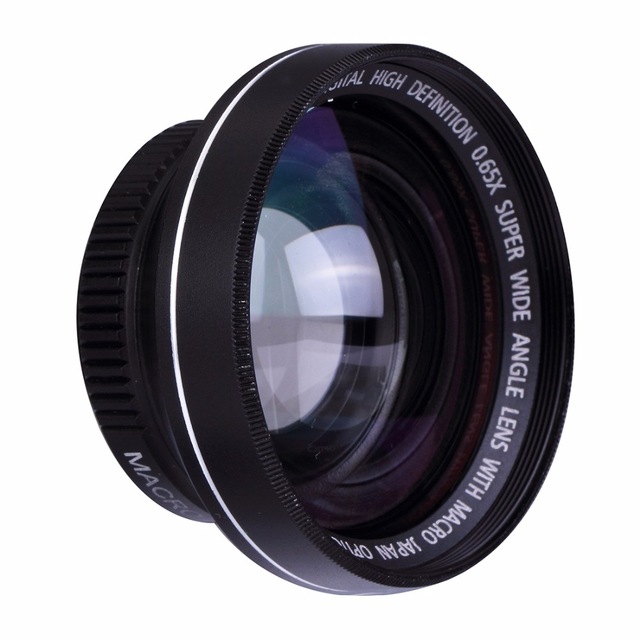
    On the photographic side of images, aside from using a tripod, the use of full-fine sensor is generally required. Specifically the use of Canon 3 Mark II or II or the Canon 6d, they are great options when it comes to the type of camera to be used. As mentioned, it is basically necessary to use wide-angled camera lens. The preferred size may be from 17mm to 40 mm lens. With this size, it connotes more peripheral vision and it can fill spaces to cover the whole frame.

    2. Find the proper angle

    find the right angle

    As a rule, when going inside a room try to go in each corner and get the proper angles first. Do not go in parallel with the furniture and bed inside. Try to find the perfect perspective angle instead. With using a wide angle lens, you will probably get a lot of distortion. [Read more]

    3. Start with the Shadows and Highlights

    Shadows and Highlights

    To start editing using the Lightroom of Adobe Photoshop, begin the retouching by opening up the shadows. It is advisable to go to about half of the shadow balance and about 75% for the highlights.

    4. Correct the Whites and Blacks

    Whites and Blacks

    By holding the ALT key and moving the cursor to the right, you can open the whites you needed in your photo.

    5. Establish the White balance

    White balance
    photo colorvaleactions.com

    White balance is important to the photograph as a whole. It is the removal of unacceptable colors that are relative to color temperature of the source of light. By having knowledge about digital white balance, it improves photos under wider lighting condition perspectives.

    When the white balance seems wrong use the picker to determine the areas that are pure white or very light gray. This time, you need to adjust the temperature and contrast to make the whole area warmer. It is important to open up a little more shadow and adjust the highlights for checking. Take note that the white balance is more on the artistic side of the photographer.

    6. Consider adjusting Sharpening and Noise Reduction


    video credit Anthony Morganti
    In the Lightroom, the Noise Reduction tab luminance is lowered to 40 and the Sharpening to 90. This is usually applied to the dark side of the floor. Masking is not good in interior designing which is why the Masking balance is untouched.

    7. Application of Lens Correction

    Because of the lens used, there is always a slight correction that will be done. These imperfections can be the blemishes from the glass of the lens. These blemishes are lens elements which will minimize the reflection. To correct all these lens flaws and get rid of the imperfections, proceed to Lightroom “Lens Correction” tab and click “Enable Profile Correction” including “Remove Chromatic Aberration”.

    Most of the time, Auto Upright is a reliable tab. But in the case of Lens Correction, it does not work according to your liking. In this case, it can be fixed manually so that the treatment of the vertical and horizontal lines can be done immediately. These lines are bases of interior designing and architectural photography. To make the Vertical lines highlighted, add +5 to the “Vertical” setting and -2 to “Distortion“to remove some bumpy effects.

    8. Supplement the so-called Ramelli Lightroom secret ingredients

    Making the photos more dramatic is to enhance the photo for the perfect perception of viewers. You can optionally delete what you do not want to be included in your photo. You can also use the Brush to polish floors that are parquetted or tiled. You can also brush the whole area to remove all the dust to bring the message to the people.
    When light seems boring, try to create a drama by selecting radial filter and set exposure to 1.95. Masking and feathering the place all over again to revitalize the different areas of the room. The real purpose of masking is to create light complexities to make the pho more interesting.

    9. Use Post-Crop Vignette

    Better known as Post-Crop Vignette in Adobe Photoshop, the sole purpose of this feature is to darken edges and corners of the room. You need to correct the balance in Lightroom “Effects” and slide it down to -23 to diffuse some unnecessary light.

    10. Duplicate the layer and start removing wrinkles

    When doing the final touches of interior design Photoshop editing, you need to open the photo in Photoshop and duplicate the layer by choosing Photoshop CC. You need to copy the layer by dragging it to the bottom and select Duplicate Layer.

    To finalize the editing, one important tip is to remove the wrinkles. This is to eradicate any lumpy parts of the photo. This is done by going to Filter>Blur>Gaussian Blur and move the balance adjuster to 10.

  • 7 Fail-Proof Tips To Make Your Real Estate Photos Noteworthy

    7 Fail-Proof Tips To Make Your Real Estate Photos Noteworthy

    It’s no secret that Real Estate is a photo-driven industry. According the to the National Association of Realtors, 9 out of 10 home buyers today use the internet as their go-to source when searching for a property, meaning, your listing photos can determine whether or not your property is worth a walk-through. It’s 2018, having a really great photo makes all the difference in the world.

    If you’re adamant to take the photos by yourself (instead of hiring a professional real estate photographer), here are 7 fail-proof tips to make your real estate photos noteworthy.

    Find the best angle of your property

    Surprise! Getting “the best angle” is not only useful when taking selfies, this also applies with real estate photography. With today’s technology, a single photo can reveal almost everything in a single room, it’s best to know at what angle your living room will look stellar. Take a lot of test shots, find the things that are complimentary to your property and accentuate it.

    Avoid taking photos of the interior from the corner

    This is a common rookie mistake. Sitting tight in one corner while trying to capture the other three corners is just wrong. and boring. You really don’t need to show everything, the viewer’s eyes and brains will fill in the gaps. Get around, and again find the best angle of your property.

    Keep the straight lines straight

    When taking interior photos, the images will show various objects ie, stairs, wall lines, furniture. If your lens is slightly tilted, the lines will be going diagonally. This is a distraction you don’t want. Make sure to keep those lines straight to keep the viewer’s orientation of the photo simple.

    Make use of props

    Props will add color and life to any shoot. Add features to a room to create this certain mood or atmosphere. Before you shoot, walk around your room and get a feel for it. Be careful not to overdo it though, a pop of color here and there is enough.  Proper styling will make your photos look professional.

    Lighting is everything

    It cannot be emphasized more how natural light can make all the difference. Find out at what time the lighting falls perfectly in your property, and take advantage of it. You want to make sure that you have the ideal lighting in your photos to keep it crisp and bright. If you think the existing light in your space is not enough,

    Get rid of dirt & clutter, old & damaged furniture

    This one is a no-brainer. If you want the best results, everything has to be squeaky clean, from the windows & tables, to countertops & floors. Potential aesthetic hazards, such as worn-out furniture or damaged blinds, should be dealt with in advance. Remove anything that can compromise a good-looking photo, and add objects which you think will add charm.

    Make friends with post-shoot editing

    Straightening the home or property

    While it’s important to get good raw photos, it’s rare that those will come out exactly as you like. Colors have to balanced, menacing shadows have to be taken out, lines have to straightened out…the list can go on. There are several tools available that can help you with that; make your research. If the thought of editing makes your shudder, experts are more than willing to help you with that.


  • Top 8 Mobile Cameras for Low-Budget Panoramic Photography

    Top 8 Mobile Cameras for Low-Budget Panoramic Photography

    In today’s generation, everybody owns a smartphone. And the camera technology of these smartphones is better than ever. It has improved tremendously. The ability to capture precious moments is quickly and easily done with the use of these gadgets. Alongside with text messaging, taking photos is the most used component of smartphones.

    Before the advent of the Internet, you have to carry a separate camera just to take pictures. Now, you only need to bring your smartphones with you and you already have the access to an excellent camera right inside your pockets. Many individuals depend on the built-in cameras of their smartphones primarily to take photos of some of the most important moments of their lives.

    Smartphone manufacturers are obviously exploiting how to create an outstanding camera. The quality of the camera is one of the features buyers are looking for. It has been a common knowledge that megapixels of camera determine the quality of the pictures being taken. But in reality, the quality of the photos depends on many factors like the resolution, sensors and aperture that help in preventing picture inaccuracy.

    Top Eight Mobile Cameras for Low-Budget Panoramic Photography

    1. Honor 7X
    At a very low price, Honor 7X offers great performance. For budget-conscious people, this is a smartphone owning a decent camera that is worthy of a consideration. Made by Huawei, the camera is set at 16 megapixels backed by 2 megapixels lens. Although capturing a video using this camera offers only up to 1080p at 30fps, you can dig into its settings to alter the focal point because of its wide aperture mode.

    hihonor


    2. OnePlus 6
    Since each individual venturing in panoramic photography has different budgets, bargaining a phone could still be the best thing to establish. For a number of reasons, OnePlus 6 can give you everything you need from a cheap phone. At 1,080 pixel resolution, its dual-lens rear camera backed by a second 20-megapixel camera is a complete package in taking a photo in a portrait mode. Its aperture I f/1.7 and is composed of additional bokeh effects.

    oneplus 6


    3. Moto G4 Plus
    At 16 megapixels and f/2.0 lens, Moto G4 Plus exhibits detailed color reproduction because of its dual-tone flash using its 5.5-inch Full HD screen. Owning a 5-megapixel front camera, Moto G4 Plus is a better alternative in getting panoramic pictures because of its fairly economical price.


    4. Samsung Galaxy S5
    Galaxy S5 has a remarkable six frames-per-second inside a 30-second burst. It picture-taking abilities are noteworthy as it sports a 31-mm, f/2.2 lens for digital image stabilization. Galaxy S5 can capture detailed photos of either near or distant objects at a speed of ISO800. It is also sensitive to noise while color reproduction is short of remarkable and accurate.

    Samsung Galaxy S5


    5. HTC U Play
    Featuring a 16-megapixel camera, its lens has an aperture of f/2.0 which determines its cone angle for better and faster auto focus. It also possesses a dual LED flash and displays 5.2 inches Full HD screen with optical image stabilization. Available at cheaper price, it also has optical image stabilization where sensitivity to light is a major smartphone issue when it comes to picture-taking.


    6. Moto G (3rd Generation)
    Testing of different smartphones for its excellent panoramic photograph starts from capturing social events to shooting photos for an article. It is very important to have an outstanding camera in your smartphone when you try to snap many shots as possible. Third Generation Moto G features 13 megapixels with 28mm lens. Its aperture is f/2.0 that does not produce distorted images while maintaining perfect sharpness. Its selfie front camera produces good quality image and video production is vibrant and detailed.

    moto g 3rd gen


    7. Moto X Play
    X Play has dynamic 21 megapixel sensor and is considered as an average Motorola model. It has an aperture of f/2.0 rear camera combined with 5 megapixel front-facing camera. It can easily detect high contrast environment because of its automatic HDR mode. The colors produced by this cheap camera are vibrant and its difference in intensity effects is noticeable.

    Moto_X_Play


    8. Huawei P8
    The feature proportionality of this smartphone is remarkable. It owns a slim body but with a large 5.2 inches full HD screen. With a bright f/2.0 lens aperture at 13 megapixels, Huawei P8 has a number of significant photographic features which includes a light painting mode. It has a reasonable quality image and is considered a good smartphone for its cheap price. Its Sony sensor makes its camera well suited for any environment and is designed for low light performance.

    Conclusion

    There are numerous surprising landscapes to be taken around us. Panoramic images, for example, can be a very hard thing to create. But with the use of modern digital cheap smartphones, there are various tricks that can be enjoyed by everyone. Having a definitive picture taken can be a start of providing yourself with excellent examples of startling panoramic photos.

    Depending on the environment you are into, light changes play an important factor. The shape scene, light diffusion and other influences may pose certain problems, too. To make a very consistent panoramic photo, always look for a particular effect in the atmosphere of the place, by considering whether you are indoor or outdoor. One also needs to consider positioning and stability, and maximize the use of the different most up-to-date apps in creating a perfect panoramic photo.


    Featured photo credit to http://www.easypano.com/panorama-software.html

  • What’s in a Picture?

    What’s in a Picture?

    It’s easy to appreciate a good photo. Scan through the pages of Town & Country magazine, or any real-estate magazine for that matter, and you will find yourself gaping at the beautiful bedrooms, kitchens, or lawns. Everything looks perfect, you imagine yourself living in it.

    The Art of Photo Editing

    Suffice to say, a good photo evokes emotion(it’ll make you see or feel things!), but what is commonly overlooked is the amount of work that goes behind it一the intricate art of post process photo editing. For starters, it’ll take an average time of five minutes to edit a living room photo in one property, imagine doing 40 of them!

    What really goes behind photo editing, you ask? Well, a lot. Here are the basic photo editing processes we apply in every photo we get:

    1. White balance

    White balance (WB) determines how accurately the colors of your photo will come out, thus playing a vital role in photo editing. It is important to get the right amount of temperature or tint, in say, a bedroom photo to make it look attractive; a too cool or too warm WB can completely affect the interpretation of a photo.

    2.  Contrast & Exposure

    Contrast in photography is the difference between dark and light. High contrast means an extreme difference between dark and light, while low contrast is a gradual or lesser difference between dark and light.  Exposure is the overall brightness of an image or the amount of light in the photo. A photo will appear too dark if exposure is set too low, and too bright if it’s set too light.

    3. Vibrance & Saturation

    These fun color-boosting settings can either make or break a photo. Vibrance tool increases the intensity of a more muted color and leaves the well-saturated ones alone. Think of it like a fill light, but exclusive for colors.

    On the other hand, Saturation bumps up the intensity of all colors in an image, regardless of the starting point of the colors. It’s best to be careful and not to go ballistic with these two.

    4. Noise reduction

    Images can be noisy too. In photography, however, noise refers to the random, irregular, and grainy specks in an image. When it comes to noise reduction, we have two main goals. First is to get rid of any digital noise in the image, but as much as possible preserve the details that comes with it. Noise reduction in an image can be a little tricky and time consuming as increasing noise reduction means losing details on your image.

    5. Alignment

    To get that perfect photo, it’s best keep all lines in your photo aligned. It never hurts to pay good attention to the image background or scene, make sure no lines appear tilted or curvy. Proper alignment will make your photo look balanced.

    6. Masking

    The term “mask” is simply a way to apply something to a very specific portion of an image. Layer mask and clipping mask are the two primary types of masks, and are closely related in concept but different application. Sometimes, it is necessary to mask photo to achieve a much-need effect.

    7. Resizing and Cropping

    These two may be the easiest photo editing process, but it’s still important to note that both require careful consideration or risk compromising image quality.

    Obviously, there are only two way to resize a photo: smaller or larger. When reducing a size, image pixels will be reduces as well and discarded, enlarging it makes each pixel appear larger. Cropping is simply removing a part of the image that appears out-of-focus or unnecessary.

    Final Stage

    After a rigorous photo editing process, the photos will undergo quality assurance from our very keen QA team.  We’ll look into every detail to make sure no photo will look flat, foggy, dark, or too bright, destructive editing is to be avoided at all times. 

    The amount of scrutiny is as thorough as the actual editing itself. Each processes mentioned above has to be done just right, and we take pride in the fact that our photos look naturally & consistently beautiful.

    Rest assured every photo will be handled with utmost quality from the beginning up until its final stages, even with our most economical package.


  • How to Edit Basic Real Estate Photos Using Adobe Photoshop CC?

    How to Edit Basic Real Estate Photos Using Adobe Photoshop CC?

    Photo editing can recreate ordinary pictures to look extra amazing. Enjoining your family on a trip to a splendid vacation, attending parties with your friends or possessing great memories of special occasions, taking pictures from these events can eventually make the event more extraordinary.

    In these times of digitization and information age, almost everything we think of can be completed at the tip of the fingers. Picture editing is one of the most common tasks to be done when it comes to enhancement of pictures. Old images, photos and videos are the ones which are preferred to be edited. Image restoration of these types of pictures ultimately needs a particular set of skill.

    With proper knowledge on photo editing, it can be guaranteed that profits can grow exponentially when used in a correct and professional manner. Photo editing is valuable to portraits for personal representation of pictures. It can be utilized for special occasions like birthdays, anniversaries, weddings and other eventful ceremonies. It is also suitable for commercial projects and businesses, like real estate, in particular.

    Photo editing can also help service and advertising firms for real estate companies and brokerage systems. It can increase the aesthetic beauty of properties by the enhancement and enrichment of images. Images are edited by making the color more vibrant and to make the photos look more entertaining to stare at. These modified images may turn out to be used for listing services for other websites.

    Some of the things that can be achieved when editing photos include the changing and enhancing the colors. Unwanted background can also be removed by means of cropping. Photo enhancing also includes adjustment of contrast, brightness and sharpness. What is more remarkable is by making a black and white photo turn to a colored photograph.

    Photoshop CC Overview


    video credit Just Alex Halford

    To make photo editing clearer and more detailed using Adobe Photoshop CC, it is important to have this application downloaded to your PC or Mac. Editing and previewing of Canvas should be done first in order for the blank page to show up.

    Unlocking the background layer is done by the LOCK symbol. You need to double click this so that a new layer screen will pop out. To add more layers, simply click DUPLICATE LAYER or NEW LAYER. Take note that if you have three new layers, you need to work on a separate layer for circle, colors and always save your work.

    There are other special features that are built-in in an Adobe Photoshop CC. The list includes changing color background or foreground by means of editing the stroke pixel, stylizing the gradient background, filtering and more.

    Since it is assumed a real estate photos are the ones needed to be edited, it is automatic to identify the tool box on the left part of the screen and familiarize all the feature given in that box. Noticeable at the right side of the screen is a setting for file storage. Make it sure that the storage must be spacious enough as Photoshop files are relatively big.

    How to Use Adobe Photoshop CC Effectively

    The most popular tool used in real estate photo editing is Adobe Photoshop Creative Cloud (CC). This is considered by many as the most advanced digital imaging software. The very basic step to use this is to download Photoshop CC. Adding effects to real estate pictures can be limitless unless your retouching skills are exceptional. This is not to discourage beginners but it is a popular notion that whenever you have competitive background when it comes to technology, you certainly have the edge.

    Below are the steps on how to make real estate photos enticing to viewers.

    1. Resize photos via Image Processor

    photo credit slrlounge.com

    Using Image Processor to enhance real estate photos, you need to choose “Select Folder” and select JPEG for resizing. You need to choose “Include ICC Profile” afterwards then click “Run”. Image Processor can basically resize a number of photos that will save you lots of time. This is a significant tool of Photoshop CC.

    2. Use “Curves”

    More often than not, picture editing largely involves correction of colors. With the use of Photoshop CC’s powerful tool called Curves, correcting the colors to what you desired can take some precious time to master because “Curves” is a complex feature of Photoshop CC.

    Since the image is assumed open in Photoshop, go to “Image”, proceed to “Adjustments” and finally select “Curves”. You need to click “Auto” for you to be able to grab the diagonal line located at the center. This line is used to brighten or darken the image.

    Another feature of the “Curves” is the presence of eyedropper. Eyedropper is used to select the black and white qualities of a photo. It can locate and optimize even the slightest color difference. This is a small process that a photo needs to undergo during enhancement.

    3. Try “Hue and Saturation”

    Hue and Saturation

    Mimicking the functions of “Curves”, “Hue and Saturation” is another feature that is very significant in the augmentation of color correction. Although this feature seems common to use, it will take to perfect this feature. “Hue and Saturation” has a variety of options. This feature is very relevant and important to real estate photos because the enhancement of greens and grass is a challenge for all users.

    After getting your image opened, go to “Select”, followed by “Adjustments” and then click “Hue and Saturation”. You can easily adjust the hue to +15, and saturation/lightness to -5. Once these adjustments are made, simply click OK. This feature should make the tone of the photo more vibrant.

  • 5 Basic Color Correction Techniques Using Photoshop CC

    5 Basic Color Correction Techniques Using Photoshop CC

    There are many features, new and old ones that make Photoshop standout from the rest of popular photo editing tools. Photographers, web designers and graphic artist, to name a few, benefit from using the Creative Cloud version of Photoshop.

    This graphics designing software will help every user edit pictures depending on the purpose, its demand and supply analysis for career and business. One of the best ways to earn income is to begin using your technical skills in photo editing. It can be done either in an offline or online operation.

    Because it is important to promote products online, you can also consider designing your own website. When you fully developed the skills necessary to master photo editing, you can also apply for online jobs for related projects. These projects can also be done either in an online or offline basis but most web design companies prefer offline work because of then use of the printing press, photo studio and related offline design works.

    From the advantages mentioned, everything boils down to color grading, adjustment and manipulation in photo design and editing. When using Photoshop CC, it is a requirement to know the basic skills and techniques in white balance and color correction. It is for a fact that in order to make a correct balance, it is very important to know the different aspects of setting and familiarize white balance using a camera.

    Five Color Correction Techniques Using Photoshop CC

    Our eyes are very similar and in a way, comparable to a camera. Our eyes are excellent when it comes to making an automatic white balance. But cameras are not as good as our eyes in doing this. Below are five color correction techniques using Photoshop CC.

    1. Add the Threshold Adjustment and Curves for color correction

    When creating a new layer, go to Edit and Fill then select the layer with 50% gray. The layer blend mode must be set to Difference. It is important to set the Threshold level to 10 and grab the Eyedropper tool while holding down the Shift button. You need to click to drop the color over the black spots.What follows next is to delete Threshold and add Curves Adjustment Layer. While zooming in the eyedropper to the area of interest, click once to have a color balance.


    video credit 2 Minute Photoshop

    video credit PiXimperfect


    video credit Learn Color Grading 2. Skin Color adjustment

    To set skin color to perfect, you will be shown with the skin color breakdown of White, Black, Latin, and Asian while balancing a fair amount of magenta, yellow, black and cyan for a perfect skin. The real technique in this tool is to choose a great area from which colors are adjusted and measured.
    video credit Learn Color Grading


    video credit Prince Meyson
    3. Adjust the White Balance tool in Camera RAW editor

    In using this tool, you need to open the image in the Camera RAW editor to change the image to a smart object and go to Filter then Camera Raw Filter. While choosing the White Balance tool the neutral point in the photo to automatically make the white balance corrected.


    video credit Pink Flower Photography
    4. Adjustment for Hue and Saturation Layer

    This is the fourth method of color correction with the use of Photoshop CC. It basically needs a /hue and Saturation adjustment layer. You need to utilize the channel drop down to point any color that is overwhelmingly seen in the photo. Shifting the hue to reduce the saturation will make a big difference. But there is a limitation in using this tool. This method works amazingly when there is a color that is obviously affecting uniformity of the whole image.


    video credit tutvid

    5. Free Hand adjustment

    Using the ‘finger’ icon, this will take a Curves adjustment layer while the channels can be Red, Green and Blue. You have to drag either up and down on any part of the photo to introduce Red/Cyan, Green/Magenta or Blue/Yellow whenever there is a need to do so. In a photo whose orientation is landscape, this technique is really effective.

    Conclusion

    Understanding the basic color adjustment manipulation in Photoshop CC is very common in numerous photo editing techniques. There are times that removing a tint can be a good choice. There are also instances where the background layer of the original photo needs to be corrected. Whatever the adjustment may be, it boils down as to how skillful and artistic the editor is.

    Every design that needs to be added or removed, every color and curves that needed adjustment or every contrast that needed to be brighten of darken, images are ‘photopshopped’ for perfection. It is this tool that really determines the needs of a particular image. Using Photoshop CC as your tool commands various options for color correction.

  • 15 of Seattle’s Best Real Estate Photographers

    15 of Seattle’s Best Real Estate Photographers

    Technology continues to amaze us because of the creative visual options it offers. Aside from this, life becomes easier because it responses to the changes and challenges of the modern world through the help of the different technological innovations these days.

    In real estate business, many clients are likely to favor virtual tour as their guide to property search instead of traveling to its exact location. Virtual tour, as many agents fondly call it, exposes a vast range of possible client listing because it is an important visual tool to complement the listings especially in the social media.

    The orientation and the quality of the image can be everyone’s weapon in presenting to clients the different properties that are for sale in a very astonishing 3D style. When it comes to houses and condominiums, a decent shoot for each room can be one of the biggest breaks of an agent. This is one of the very important aspects of giving virtual tours to clients as photographers must prepare every room they plan to shoot.

    In Seattle, WA, photographers always emphasize the best feature each room possesses. They think that a great photo of every room can be the best selling point in every transaction. They always come up to the idea of capturing photos of rooms exposed in natural light, aside from considering the space availability of which the buyers may be curious to see.

    [lwptoc]


    List of Seattle’s Finest Real Estate Photographers

    Below is a list of some of the best real estate photographers located in Seattle. They are as follows (random order):

    1. NAME: Andrew Buchanan

    WEBSITE: www.subtlelightphoto.com/
    SOCIAL SITE: https://www.linkedin.com/in/subtlelightphoto

    Andrew Buchanan’s architectural expertise made him popular in the surrounding areas of Seattle. His photography includes a wide array of architectural and interior services. He is also familiar with land and aerial photography. His being popular earned him to be one of the best persons for design, marketing and advertising projects.

    2. NAME: Chuck Sires

    WEBSITE: http://cjphotonw.com/
    Gallery: http://cjphoto.zenfolio.com/residential

    CJ Photo Banner

    Chuck Sires

    CJ Photos is a photography service firm owned by Chuck Sires that focuses on action photography, professional headshots, event photography, aside from real estate photography. He is sometimes called Jack of all trades because he knows how to mingle to whoever he is with. His photoswere featured in Seattle Magazine and Ibuki.

    3. NAME: Matt Edington

    WEBSITE: claritynw.com/
    SOCIAL SITE: https://www.facebook.com/ClarityNorthwest/

    Clarity Northwest Photography is a leading architectural and aerial photography in Bellevue. He has served all kinds of clients from local to nationwide. Having specialized in architectural and real estate photography, Clarity Northwest aids their clients of intriguing but compelling images

    4. NAME: Ilya’sMoshenskiy

    WEBSITE: ilyaphoto.com/
    SOCIAL SITE: https://www.facebook.com/ilyaphoto/

    architectural-photography

    Owned by IlyaMosheskiy, Ilya’s Photography is a full-time photography servicing firm that also specializes in architectural, commercial and even in event photography. For at least 35 years serving the surrounding areas of Redmond, WA, the Ilya has traveled nationwide, making it one of the foremost names in real estate photography business.

    5. NAME: Jesse L. Young

    WEBSITE: http://www.realestatephotographerseattle.com/
    SOCIAL SITE: https://www.facebook.com/jesseyoungphotos/

    Jesse L. Young is involved in residential as well as real estate photography. His company is located at Kirkland, WA, where its service is also felt in the nearby areas. Jesse L. Young likewise gives package of having photo tour websites, same day photo delivery and virtual home tours. The firm’s effective services have made it a perfect choice for real estate photography.

    6. NAME: Joel Dames

    WEBSITE: www.joeldamesphotography.com
    SOCIAL SITE: https://www.facebook.com/Joel-Dames-Photography-196331813745407/

    Located in Shoreline, WA, the he is expert in portraits, real estate and commercial camerawork. He is also involved in servicing special occasions like weddings, events and photo albums. The quality of work is high and Joel Dames owns high-end photography equipment.

    7. NAME: John Wilbanks

    WEBSITE: jwphoto.com/
    SOCIAL SITE: https://www.facebook.com/jwphotoinc/

    This particular photographer is a household name in the area of Bellevue, WA. Aside from providing 3D photography guiding materials, its services also include aerial, residential and stock photography. John D. Wilbanks is also involved in giving professional services in terms of creativity, reliability and high-quality services.

    8. NAME: Katherine Gooding

    WEBSITE: www.katherinegooding.com/
    SOCIAL SITE: https://www.facebook.com/KatherineGoodingPhotography

    An expert photographer by profession, Kathering Gooding serves clients in Seattle, WA and takes pride in shooting images of restaurants, commercial businesses, architectural designs, and real estate properties. She also works as a creative photographer to her customers and she knows the basic needs of her clients in terms marketing materials.

    9. NAME: Robert Wachtendonk

    WEBSITE: www.rwphotography.biz/
    SOCIAL SITE: https://www.facebook.com/pages/Robert-Wachtendonk-Photography/394280597249218

    The proprietor, Robert Wachtendonk is a professional photographer who specializes in product and real estate photography. He also includes sports photography as one of the services his company offers. He uses great communication and involves in shooting efficient photos.

    10. NAME: Jules Frazier

    WEBSITE: julesfrazier.com/
    SOCIAL SITE: https://www.linkedin.com/in/julesfrazier

    Jules Frazier is a photographer whose services include real estate photos, small business images and marketing and advertising products. Because of the craftsmanship Frazier possesses, his photography business results in profitable sales and excellent marketing endeavors.

    11. NAME: Megan Swann

    WEBSITE: www.meganswann.com

    event photography

    Megan Swann is a real estate photographer who owns her photography business – Megan Swann Photography. Aside from real estate, she is also involved in a wide array of photography landscape like corporate and culinary event photography.She has also served as photographer and photo editor of a famous magazine.

    12. NAME: Shawn Nichols

    WEBSITE: shawnhnichols.com

    A Pacific Northwest native, Shawn has captivated people’s attention. She offers a host of photographic services like real estate photography, portraits, corporate, products and events. She is a member of the North Seattle Chamber of Commerce and the Seattle Metropolitan Chamber of Commerce.

    13. NAME: Megan Ingram

    WEBSITE: https://meganingramphotography.weebly.com
    SOCIAL SITE: https://www.facebook.com/megan.ingram.169

    A professional real estate photographer, she creates sales using the realtors to make the buyers enjoy their potential dream home. She likes to bring out the character in every shoot she makes. Her real estate photos are all fulfilling that becomes part of any buyer’s future possibilities.

    14. NAME: Ryan Castoldi

    WEBSITE: https://www.ryancastoldi.com/
    SOCIAL SITE: https://www.instagram.com/rcastphoto/

    Ryan is one of the photographers who seemed to have possessed a natural skill in camerawork. He understands how to use contrast and brightness of light properly. He has all the equipment and having been in the photography industry for 20 years, he has known everything – from the minute details of the business to all other possibilities the industry can throw at him.

    15. NAME: Emily Kistler

    WEBSITE: emilykistlerphoto.com/
    SOCIAL SITE: https://www.facebook.com/public/Emily-Kistler

    Emily is a talented real estate photographer whose goal is to create portraits that will be cherished by generations to come. She is involved in photography including commercial and products, events, and sales and promotions.